
Payments
View Payments
To view the payment list, click Payments from the main menu and select View Payments.
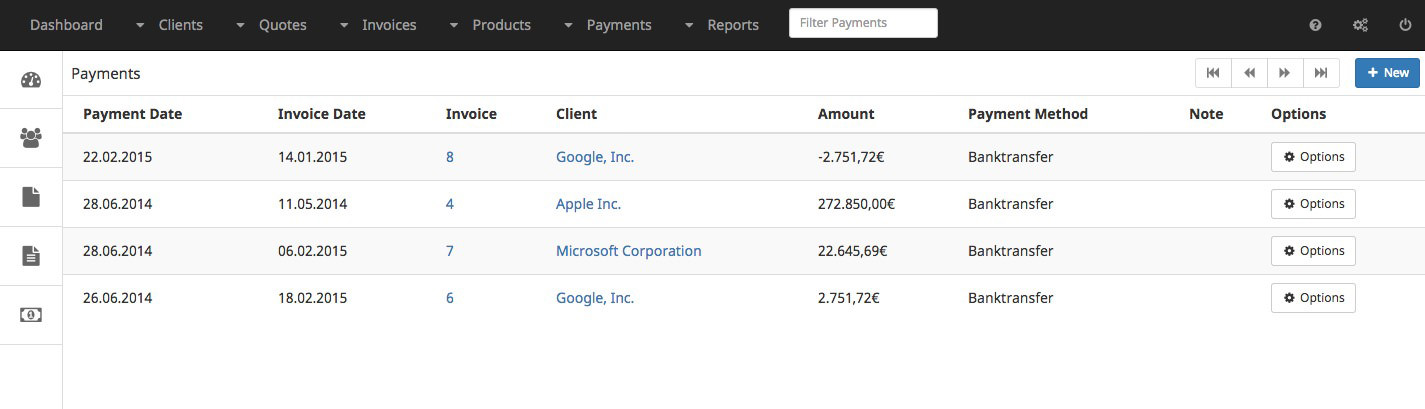
To navigate between pages, use the pager buttons located on the submenu bar.
Entering a Payment
To enter a payment, either choose Payments from the main menu and select Enter Payment, or from the payment list, click the New button near the top right of the page.

When entering a payment, first select the invoice to enter the payment for. This will default the invoice amount into the Amount field. Adjust the date and amount, if necessary, and optionally select the payment method and enter any pertinent notes and press the Save button near the top right of the page.
Online Payments
Help Invoice can be configured to allow clients to make payments online. The only payment gateway currently tested with Help Invoice is PayPal.
Configure PayPal for Online Payments
To configure Help Invoice integration with PayPal, you must first have valid PayPal API credentials. If you don’t, follow these instructions first to obtain the credentials.
Once you have your API credentials, perform the following in Help Invoice:
- Click the
Settingsicon and choose theSystem Settingsentry. - Click the
Merchant Accounttab. - Set
Enable Online PaymentstoYes. - Choose the appropriate
Merchant Driver. - Set the
Test ModetoNo. - Enter the username, password and signature obtained from PayPal.
- Select the appropriate currency code.
- Press the
Savebutton.
Once configured, send your client the Guest URL (found at the bottom of the Invoice Edit screen) and they will be able to pay their invoice from the link. Optionally, you can also create a Guest User account in which the client can log into and view and pay their invoices.